Install ZAK Sound plugins on Windows
A step-by-step guide for installing any standalone ZAK Sound plugin on Windows.
Looking for Raizes instruments? Raizes products install from inside the Raizes Player — no separate installer needed.
- 1
Download
Download the Windows file from your account page and unzip it.
- 2
Run the installer
Open the
.exeinstaller and follow the prompts. The default VST3 plugin location is selected automatically — you only need to choose where the samples are installed.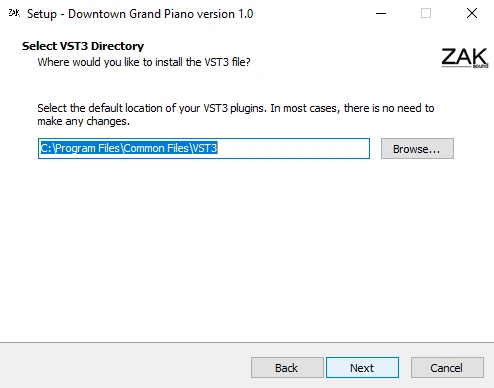
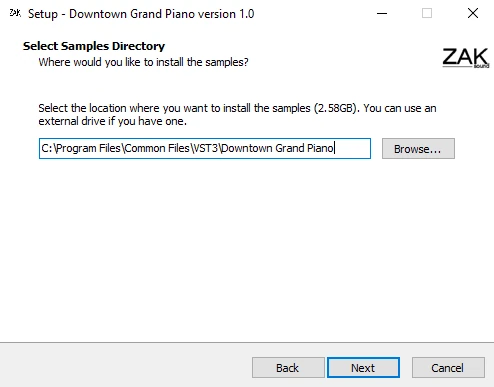
For Particles, Arctic Spaces, Deep Waters, Skyridge: the installer will skip the samples step automatically — these products don't ship with a samples folder.
Tip: pick a samples drive with plenty of free space. You can install samples on any drive, not just your system drive.
- 3
Open the plugin and activate
Launch the plugin in your DAW. When prompted, enter the serial number from your account page and you're ready to play.
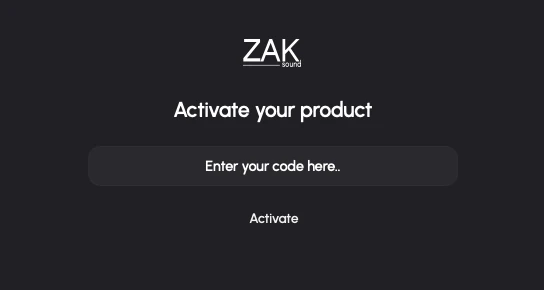
No serial number? Some products don't require one — if there's no serial on your account page for this product, you can skip this step.
Still stuck?
If something didn't work, we're happy to help. Email support@zaksound.com with your order number and a short description of what's going wrong.